
Positioning Text in Frames and Text Boxes
How text is positioned in text frames and text boxes is governed by two sets of commands: the Align Text commands and the Align commands. By choosing combinations of Align and Align Text commands, you can land text where you want it in a text frame or text box. Just wrestle with these two commands until you land your text where you want it to be in the text frame or box:
- Align commands control horizontal (left-to-right) alignments. On the Home tab, click the Align Left, Center, Align Right, or Justify button.
- Align Text commands control vertical (up-and-down) alignments. On the Home tab, click the Align Text button and choose
Top, Middle, or Bottom on the drop-down list.
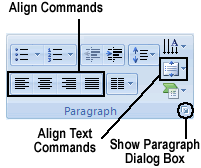
Choose an Align Text and an Align command to position text in text frames and boxes.
Distributing a title means to stretch it across a text frame or text box, from the left to the right margin. As long as enough words are in the title to distribute it without making the title a shambles, a distributed title looks rather interesting. To distribute a title, select it and click the Distributed button on the Home tab or click on show paragraph dialog, the paragraph dialog box appears and then General> Alignment drop down and select Distributed.
