
Proofreading Your Document
Besides checking for spelling or grammatical mistakes, Word can also proofread your document to highlight other possible problems, such as misplaced commas or correctly spelled words that may be used incorrectly. To make Word proofread your document, follow these steps:
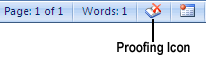
- Click the Proofing icon at the bottom of the document window. Word highlights a possible error and displays a pop-up menu
offering options similar to the options displayed and then choose one of the following:
What you want:
Click the correct word that appears in bold in the pop-up menu.
Ignore Once:
This tells Word to ignore this error.
By default, Word automatically checks for spelling and grammatical mistakes. If this bothers you, you can turn these features off by right-clicking the status bar, when a pop-up menu appears, remove the check mark from the Spelling and Grammar Check check box.
