
Checking Your Spelling
As you type, Word tries to correct your spelling automatically. (Type tjhe, and Word will automatically change it to the in the blink of an eye.) If you type something that Word does not recognize, it underlines it with a red squiggly line.
Just because Word underlines a word does not necessarily mean that the word is spelled wrong. It could be a proper name, a foreign word, or just a word that Word is not smart enough to recognize.
To correct any words that Word underlines with a red squiggly line, follow these steps:
- Right-click any word underlined with a red squiggly line. A pop-up menu appears. Choose one of the following:
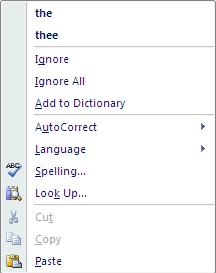
The word you want:
Click the correct spelling of the word that appears in bold in the pop-up menu.
Ignore All:
This tells Word to ignore this word throughout your document.
Add to Dictionary:
This tells Word to remember this word and never flag it again as a misspelled word.
